


When I first wrote about Private Relay and invented it, I knew the pros would catch on. I didn’t expect it to be so successful. Now half the community uses it as their proxy. But with that fame came a constant, annoying complaint: “This is a great idea, but I don’t have a Mac.”
I get it. The method is elite, but the lock-in to Apple hardware is a bottleneck.
That’s where it ends today. This guide is your key. We’re going to build a “Ghost Mac” — a full-fledged macOS virtual machine that runs on any Windows PC. The goal is simple: break vendor lock-in and bring iCloud Private Relay to anyone who needs it, no matter what kind of computer they have.
The Proxy Advantage
Stop thinking of iCloud Private Relay as a simple proxy. It’s a strategic weapon. Its power is not invisibility, but in the fact that it allows you to hide in a crowd so valuable that merchants are afraid to block it.

Every connection is wrapped in “Apple Cloak” — a digital signature of a legitimate Apple device using the pristine IP addresses of giants like Akamai. That traffic is combined with millions of real, high-spending customers. For any fraud-fighting system, it’s a nightmare scenario. Blocking a relay IP address to stop one carder means rejecting thousands of dollars in real orders and facing a flood of angry customers. No major retailer is willing to risk that kind of collateral damage.
They have to let the traffic through. You’re getting more than a clean IP address; you’re using Apple’s entire corporate reputation as a shield. You’re merging with a stream of activity so important that fraud-fighting systems have no choice but to back off.
The Virtualization Project
Most people don’t know that you can run a full macOS virtual machine on a standard Windows PC. For all you cheap carders out there who don’t want to spend the money on a MacBook, here’s your answer. Forget about services like Browserstack (which I've already covered); we're building our own. Your virtual machine will be a digital Mac in a window, completely isolated from your main system for complete security.
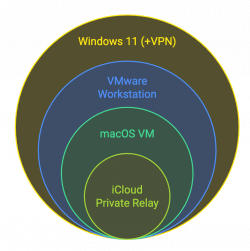
Inside, you'll run Safari with Private Relay. What's more, this setup removes geographic restrictions. If Relay isn't available in your country, or you need to get to a specific state, you simply connect the VM via a VPN on your host. This gives you absolute control over the location from which Relay gets its IP addresses.
The Arsenal
Get your toolbox ready. Don't replace anything.
1. Host: A modern Windows 11 PC with virtualization (VT-x/AMD-V) enabled in BIOS. If you don't know how to do this, search on Google.
2. Preparing the host: Disable Hyper-V. It conflicts with VMware. Open a command prompt as administrator and run
Restart your computer.
3. Software:
Assembly
Follow this exactly.
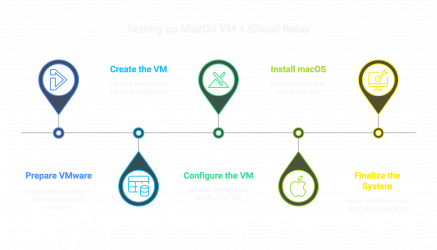
Step 1: Prepare VMware
1. Install VMware Player but do not launch it yet.
2. Extract Unlocker and launch it
or
with administrator rights to patch VMware.
Step 2: Create a virtual machine
1. Launch VMware and select Create a new virtual machine.
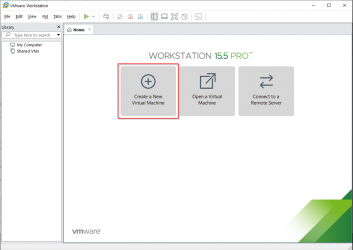
2. Select “Install an operating system later.”
3. Select “Apple Mac OS X” as the guest OS, choosing the latest version from the list.
4. Name it:
or something more interesting and save it to SSD.
5. Allocate at least 4 CPU cores and at least 8192 MB (8 GB) of RAM for maximum performance. Use NAT for network connection.
6. Create a new virtual disk, allocating at least 80 GB and saving it as a single file.
Step 3: Set up the virtual machine
1. Once the virtual machine is created, click “Edit virtual machine settings”.
2. Navigate to your CD/DVD drive, select “Use ISO image file” and download the macOS ISO image.
3. Navigate to the folder with your virtual machines and open the file in a text editor.
4. Add this line to the end. It is required.
5. For AMD processors only: If your host computer uses an AMD processor, add the following block to simulate an Intel processor. Intel users can skip this block.
6. Save and close the file.
Step 4: Install macOS
1. Turn on the virtual machine. It will boot from the ISO image.
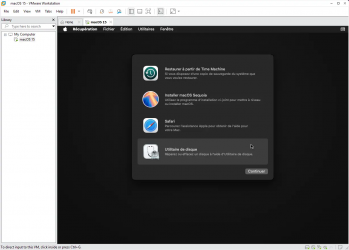
2. In the Utilities window, open Disk Utility.
3. Select the VMware virtual hard disk, click Erase, and format it as APFS with the name:
4. Close Disk Utility and select Install macOS. Select the disk you just created.
5. During the installation, create a local user and skip signing in with your Apple ID for now.
Step 5: Completing the System Installation
1. Once you are on the desktop, install VMware Tools. There should be a file in Unlocker:
Mount this ISO image via the virtual machine CD/DVD settings, run the installer in macOS and reboot the system.
2. When the system is fully functional, take a snapshot. Go to VM > Snapshot > Take Snapshot. Name it:
This is your basic reset.
Going dark
Your Mac Ghost is now assembled. Now activate the repeater.

1. Sign in: Go to System Preferences and sign in with your iCloud+ Apple ID.
2. Activate: Under System Preferences > [Your Name] > iCloud, find Private Relay and turn it on.
3. Confirm: Open Safari and visit
The IP address provided should not be your real IP address, but should belong to Apple.
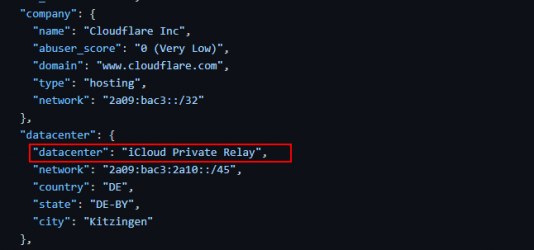
The final game
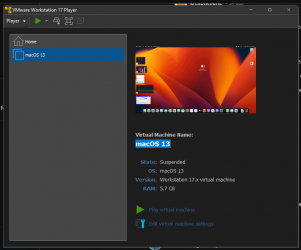
This setting is your new command center for anonymous operations.
Workflow: Before any operation, go back to your snapshot:
This erases all previous actions. Once you are done, turn off your computer and restore it to its original state. Your host computer will never be vulnerable.
Opsec rules:
Conclusion
The hardware barrier is in ruins. We took an elite tool and made it available to everyone. Ghost Mac is proof that, when properly understood, vendor lock-in and other artificial limitations are meaningless nonsense.
Elite tools are now in your hands.
There is a million dollars buried in your laptop.
All you have to do is figure out how to get it.
(c) Telegram: d0ctrine
I get it. The method is elite, but the lock-in to Apple hardware is a bottleneck.
That’s where it ends today. This guide is your key. We’re going to build a “Ghost Mac” — a full-fledged macOS virtual machine that runs on any Windows PC. The goal is simple: break vendor lock-in and bring iCloud Private Relay to anyone who needs it, no matter what kind of computer they have.
The Proxy Advantage
Stop thinking of iCloud Private Relay as a simple proxy. It’s a strategic weapon. Its power is not invisibility, but in the fact that it allows you to hide in a crowd so valuable that merchants are afraid to block it.
Every connection is wrapped in “Apple Cloak” — a digital signature of a legitimate Apple device using the pristine IP addresses of giants like Akamai. That traffic is combined with millions of real, high-spending customers. For any fraud-fighting system, it’s a nightmare scenario. Blocking a relay IP address to stop one carder means rejecting thousands of dollars in real orders and facing a flood of angry customers. No major retailer is willing to risk that kind of collateral damage.
They have to let the traffic through. You’re getting more than a clean IP address; you’re using Apple’s entire corporate reputation as a shield. You’re merging with a stream of activity so important that fraud-fighting systems have no choice but to back off.
The Virtualization Project
Most people don’t know that you can run a full macOS virtual machine on a standard Windows PC. For all you cheap carders out there who don’t want to spend the money on a MacBook, here’s your answer. Forget about services like Browserstack (which I've already covered); we're building our own. Your virtual machine will be a digital Mac in a window, completely isolated from your main system for complete security.
Inside, you'll run Safari with Private Relay. What's more, this setup removes geographic restrictions. If Relay isn't available in your country, or you need to get to a specific state, you simply connect the VM via a VPN on your host. This gives you absolute control over the location from which Relay gets its IP addresses.
The Arsenal
Get your toolbox ready. Don't replace anything.
1. Host: A modern Windows 11 PC with virtualization (VT-x/AMD-V) enabled in BIOS. If you don't know how to do this, search on Google.
2. Preparing the host: Disable Hyper-V. It conflicts with VMware. Open a command prompt as administrator and run
Code:
bcdedit /set hypervisorlaunchtype off3. Software:
- VMware Workstation Player: Free version. This is our engine.
- VMware Unlocker: The community patch that makes all this possible. Find it on GitHub
(e.g. paolo-projects/auto-unlocker)Code:paolo-projects Auto-Unlocker - macOS ISO: Installation file for macOS Ventura or Sonoma. Find:
Code:"macOS Sonoma ISO for VMWare" - iCloud+ account: An Apple ID with any paid (or carded) iCloud plan. This is a requirement to activate Relay.
Assembly
Follow this exactly.
Step 1: Prepare VMware
1. Install VMware Player but do not launch it yet.
2. Extract Unlocker and launch it
Code:
win-install.cmd
Code:
Unlocker.exeStep 2: Create a virtual machine
1. Launch VMware and select Create a new virtual machine.
2. Select “Install an operating system later.”
3. Select “Apple Mac OS X” as the guest OS, choosing the latest version from the list.
4. Name it:
Code:
Ghost-Mac5. Allocate at least 4 CPU cores and at least 8192 MB (8 GB) of RAM for maximum performance. Use NAT for network connection.
6. Create a new virtual disk, allocating at least 80 GB and saving it as a single file.
Step 3: Set up the virtual machine
1. Once the virtual machine is created, click “Edit virtual machine settings”.
2. Navigate to your CD/DVD drive, select “Use ISO image file” and download the macOS ISO image.
3. Navigate to the folder with your virtual machines and open the file in a text editor.
Code:
Ghost-Mac.vmx
Code:
smc.version = "0"
Code:
cpuid.0.eax = "0000:0000:0000:0000:0000:0000:0000:0000:1011"
cpuid.0.ebx = "0111:0101:0110:1110:0110:0101:0100:0111"
cpuid.0.ecx = "0110:1100:0110:0101:0111:0100:0110:1110"
cpuid.0.edx = "0100:1001:0110:0101:0110:1110:0110:1001"
cpuid.1.eax = "0000:0000:0000:0000:0001:0000:0110:0111:0001"
cpuid.1.ebx = "0000:0010:0000:0001:0000:1000:0000:0000"
cpuid.1.ecx = "1000:0010:1001:1000:0010:0010:0000:0011"
cpuid.1.edx = "0000:0111:1000:1011:1111:1011:1111:1111"
Code:
vmxStep 4: Install macOS
1. Turn on the virtual machine. It will boot from the ISO image.
2. In the Utilities window, open Disk Utility.
3. Select the VMware virtual hard disk, click Erase, and format it as APFS with the name:
Code:
Macintosh HD
Code:
Macintosh HDStep 5: Completing the System Installation
1. Once you are on the desktop, install VMware Tools. There should be a file in Unlocker:
Code:
darwin.iso2. When the system is fully functional, take a snapshot. Go to VM > Snapshot > Take Snapshot. Name it:
Code:
CLEAN_BASEGoing dark
Your Mac Ghost is now assembled. Now activate the repeater.
1. Sign in: Go to System Preferences and sign in with your iCloud+ Apple ID.
2. Activate: Under System Preferences > [Your Name] > iCloud, find Private Relay and turn it on.
3. Confirm: Open Safari and visit
Code:
ifconfig.meThe final game
This setting is your new command center for anonymous operations.
Workflow: Before any operation, go back to your snapshot:
Code:
CLEAN_BASEThis erases all previous actions. Once you are done, turn off your computer and restore it to its original state. Your host computer will never be vulnerable.
Opsec rules:
- Photos are your religion. Use them by all means.
- Use a dedicated, non-personal Apple ID for this. Don't be an idiot.
- Disable unnecessary services such as Bluetooth in the virtual machine.
- Bypass geoblocks: If you're in a country where Relay isn't supported, use a VPN (like NordVPN or ProtonVPN) on your Windows host machine. Set it to the United States or any other country you're targeting, then launch the virtual machine. Ghost Mac will inherit the VPN location, allowing you to activate Relay for that region.
- Time Zone is Key: Make sure that the virtual machine's system time and time zone match the location of your host's VPN server. A mismatch is one of the easiest signs to spot, even if you're using Relay.
- Safari Only: This is critical. Private Relay only works for traffic inside the Safari browser. It does not hide your entire system. All carding should be done through Safari, not through any other anti-detect.
Conclusion
The hardware barrier is in ruins. We took an elite tool and made it available to everyone. Ghost Mac is proof that, when properly understood, vendor lock-in and other artificial limitations are meaningless nonsense.
Elite tools are now in your hands.
There is a million dollars buried in your laptop.
All you have to do is figure out how to get it.
(c) Telegram: d0ctrine
Last edited by a moderator: